
Staff Recording Setup
To enable staff recording, Go to the top right menu and then Establishment.
Under Establishment Options you will see Staff Recording
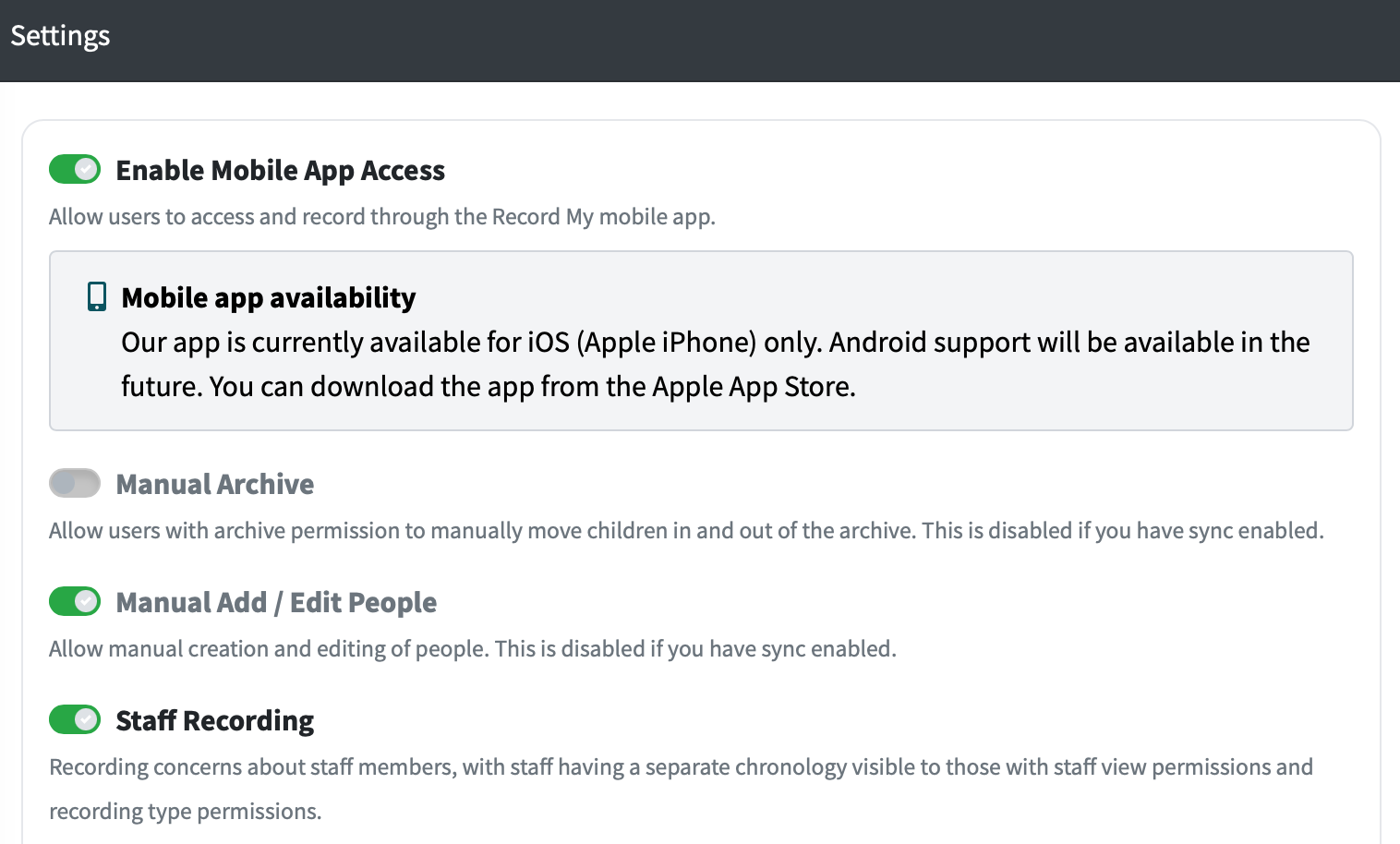
Turn this on.
Permissions
Open the top-right menu.
Select Permissions.
Grant the following to the relevant roles/users:
STAFF_VIEW (required to view staff records) - This is not to view information such as chronology entries, this only gives access to the view button.
STAFF_SEARCH (required to search staff) - This allows the group to search for staff for example to record a new entry.
Configure Recording Types for Staff
Once enabled and permissions are granted, you can now customise a Recording Type for staff. For example you can make a new Recording Type called “Staff Concern“ and assign actions, notifications and permissions as you normally do.
Open the top-right menu.
Select Customisation.
Open the recording type you want to use for staff, or create a new recording type
Set Applies To = Staff.
Save changes.