You can set a task from any recorded entry - this is different to adding an action. This is handy if you require the user who recorded the entry (or any other user) to complete something specific.
To set a new task for an entry press ‘Set Task’ on the entry on the chronology.

This will produce a dialogue box allowing like this:
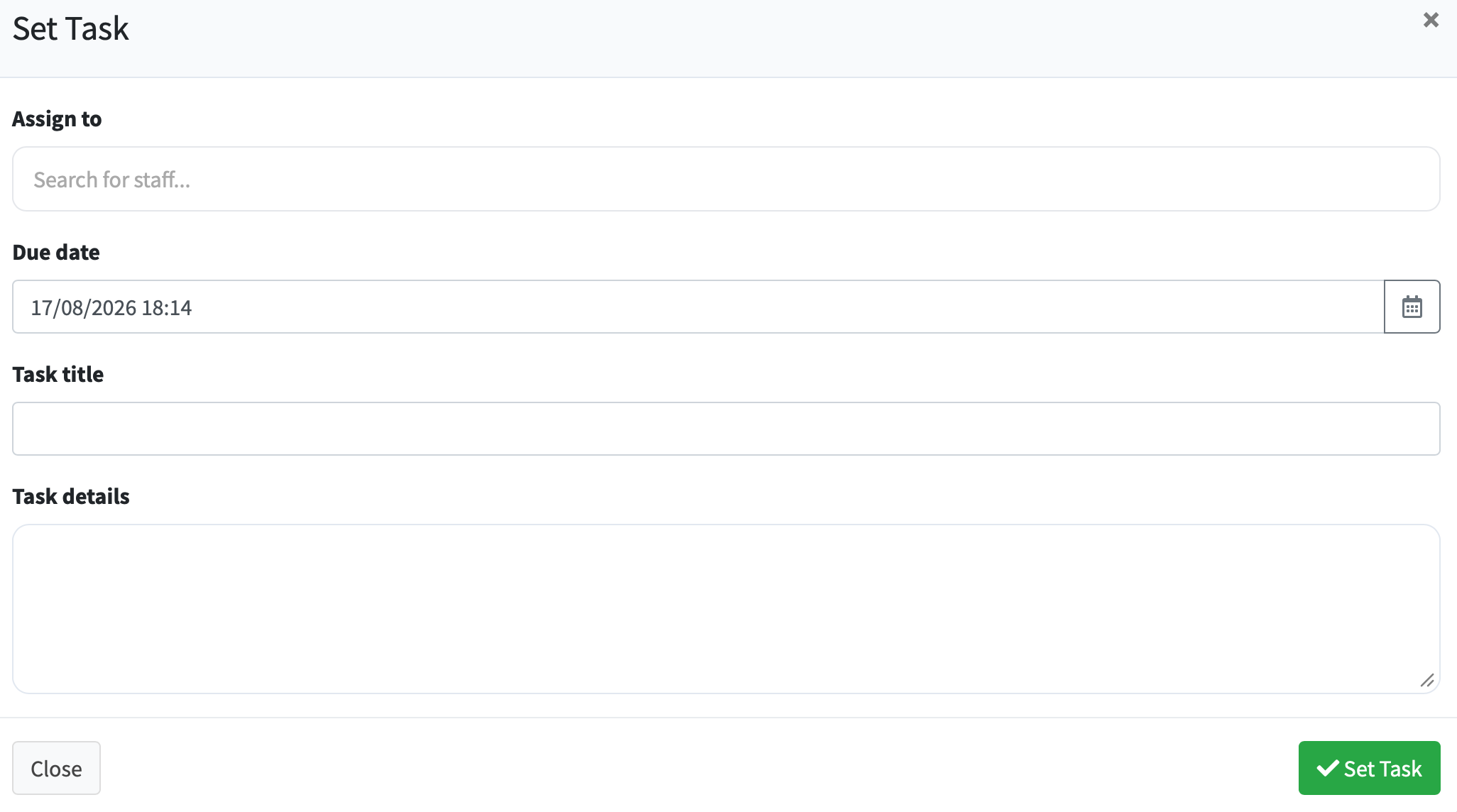
You to choose a member of staff to set the task for. The date and time your would like this completed by, a short task title and the task itself. Note the task title is internal and won't be placed on the chronology. The task itself will appear within the recorded entry and within a separate task action.
On the recorded item you will see the task appear:

Tasks you set will appear on your dashboard until they have been completed. This is in the ‘Tasks set by me’ section
There will be a red 'overdue' box next to the task along with the time remaining for the task to be completed. If the task is not completed in the requested timeframe the task will be marked as ‘OVERDUE’.
When the task is completed you will receive a notification to say this and the completed task will appear in as a separate entry in the chronology along with the action entered by the user who completed the task.
Notification will be via email and through the ‘Bell’ icon in the top-right hand corner of RecordMy.