Tags are a great way to identify groups of people and even for reporting purposes. RecordMy has a vast range of tags already built in; from safeguarding related items, health and safety, all the way to SEND. Note: Can’t find the tag you want to use? Feel free to personalise your system further by adding your own tags in the ‘Customisation’ section.
Some tags are automatic and come from your own management information system (MIS or SIS). These tags cannot be removed from RecordMy. You must remove these within your own system like Integris or SIMS and RecordMy will update automatically. Remember this may take up to 24 hours.
How do I remove a tag from a person?
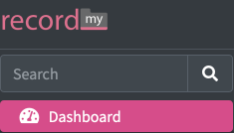
First, you need to search for the person whose tag you are looking to remove. You can do this by entering their name at the either the top or left hand sides of the screen, as shown here.

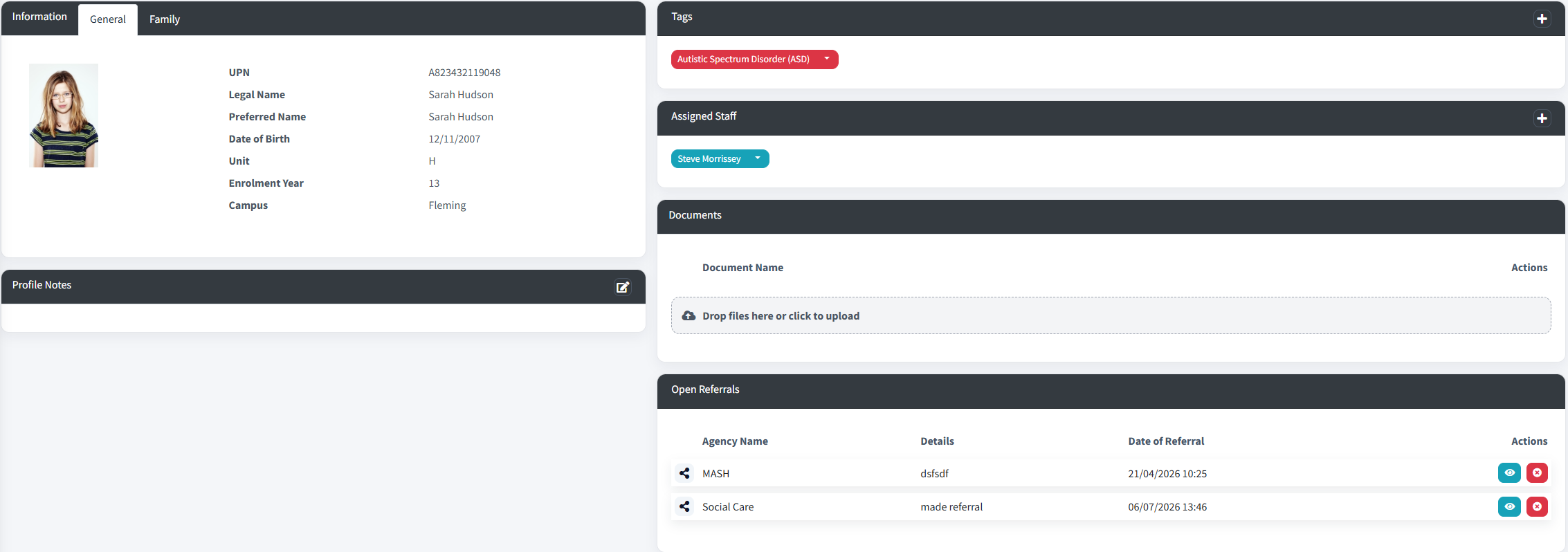
Once you have entered the information, it will bring up the person on the next screen. This shows a range of information, including any tags they have, as shown below.

Click the green ‘eye’ symbol on the right hand side, under ‘actions’ to reach the tags, and this is the next screen you will see.
Click the down arrow symbol next to the tag you want to remove.
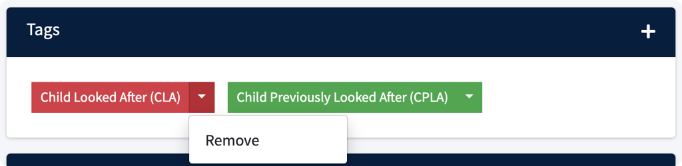
When doing this, if you see ‘Synced from your MIS.’ then this is a tag you are unable to remove from RecordMy.
If you see the option that says ‘Remove’, simply click it to delete the tag.