
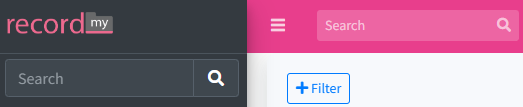
To record a new entry you first need to log in to RecordMy. Once logged in you can search for a person by entering their ID, first name or last name (or both).
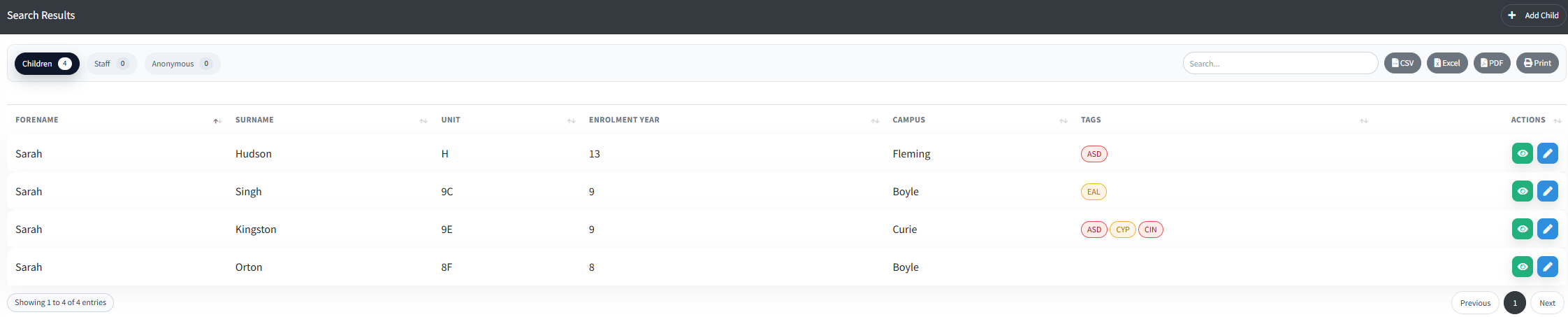
To record a new entry, you need to click the blue pencil icon under ‘actions’ on the right hand side next to the person you wish to record the entry against.
You can then select the type of entry by choosing the correct tab.

Each form is different so it is important to choose the correct heading to record your entry.
Sometimes you may see some additional buttons at the bottom of the form. These will allow you to add body maps and upload documents. They may not be available on all forms.
If you want to add a body map then click ‘Add Body Map’ and you will see a blank body map appear.
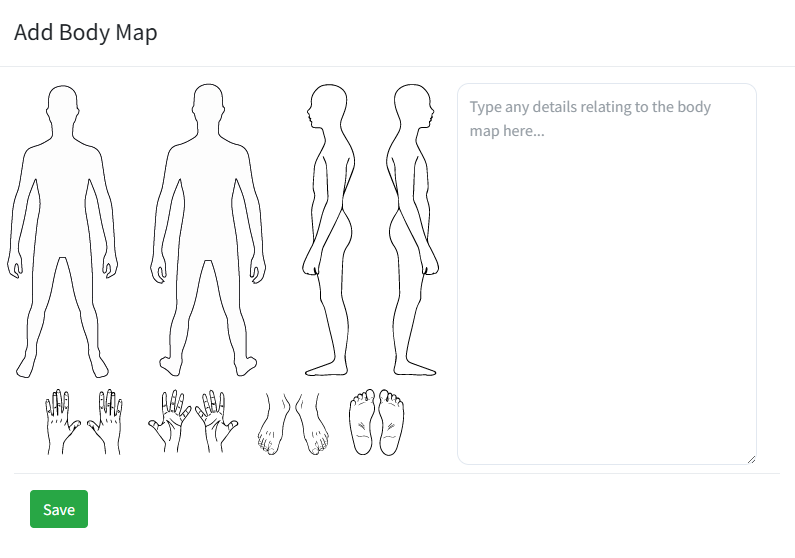
Click and draw on the areas affected and add any additional notes in the box to the right and click ‘Save’. Body maps are a great way to highlight areas of injury and allows your safeguarding team to see patterns over time with combined body maps.
Once you have completed all the required items you will be able to click ‘Record’ to save the entry.

If you have missed any required fields then the software will highlight this and require you to complete them before pressing record.
