
In order to be able to add users to groups, you must be able to first, add a user to the system.
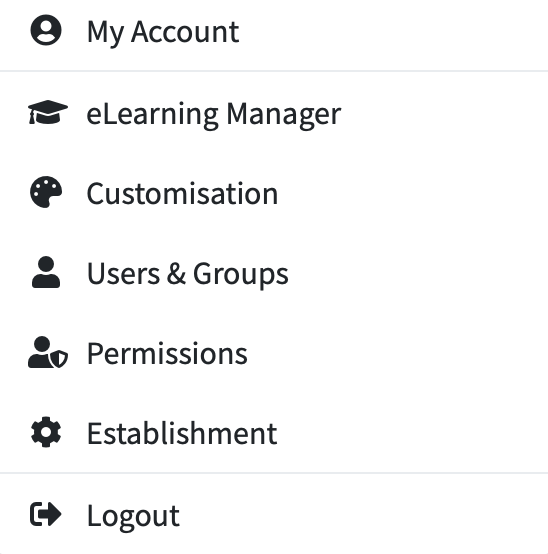
From the dashboard - access ‘Users & Groups’ from the ‘My Account’ tab in the top right hand corner of the screen.
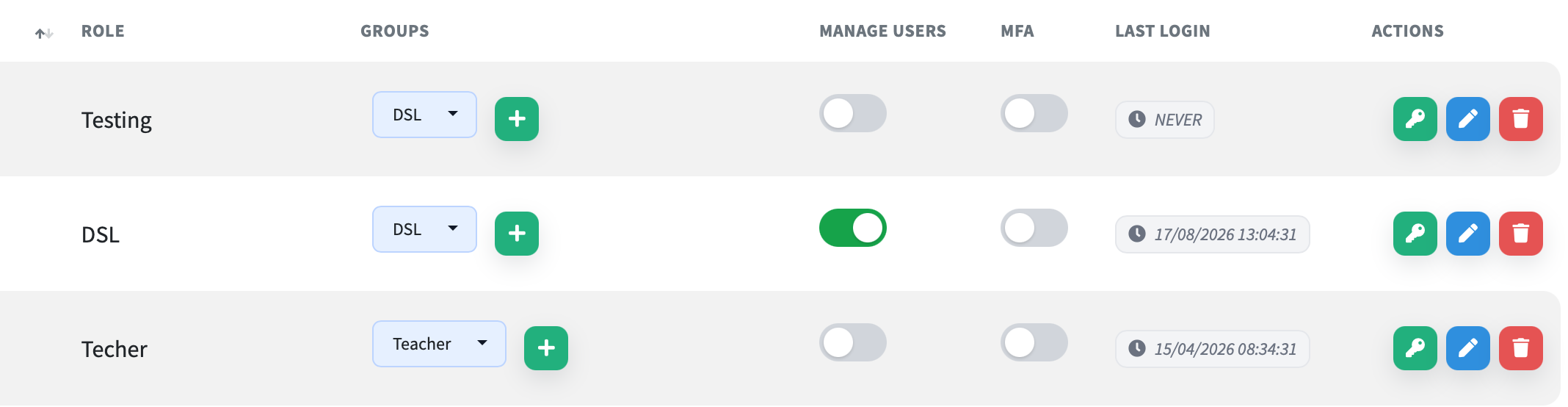
Once you have located your list of users, navigate to the ‘Groups’ section of the list.
Click the green '+' symbol to add the user to a new group. The green boxes next to it show you which groups the users have already been added to.
This screen will appear and show you all available options and groups to add in your user.
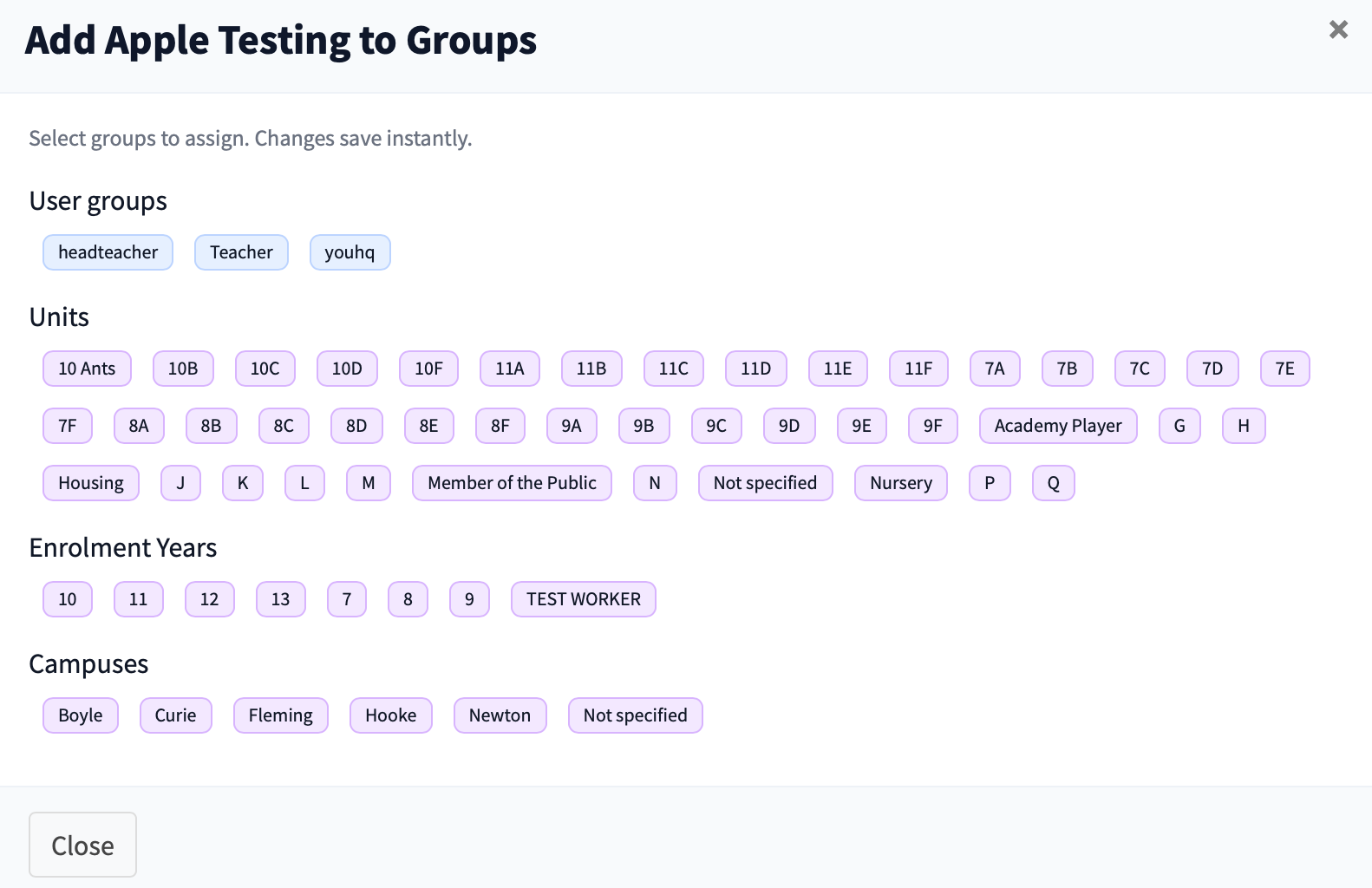
All you need to do is click on whichever group you would like to add your user into. To further safeguard and customise - you can also opt to restrict viewing to certain year groups, houses and classes.
When you have finished click ‘Close'.
You will then see your chosen group for that user appear within their profile.