Sometimes, as we are all human - genuine mistakes can be made. This means that from time to time, we need to remove things from a chronology. Being able to audit your data in this way will ensure that only relevant, up to date and detailed information is present within your cases.
To do this - you must first search for the person via the ‘Search’ box by inputting their ID, first name, last name (or both) via the search bar in the dashboard.

This will show you the specific person, or a list of people for you to choose from.

Once you have found the person whose chronology you want to look at - click the green 'eye' symbol.
This will then take you into the person’s homepage.
Scroll down until you see ‘Chronology’.

To delete an entry you simply click on the trashcan icon in the top right hand corner.

You will then be shown a category removal box. This will outline who originally input the entry along with the date and time. It will also show a notice letting you know that the entry will remain in place until the appropriate approver authorises its removal.
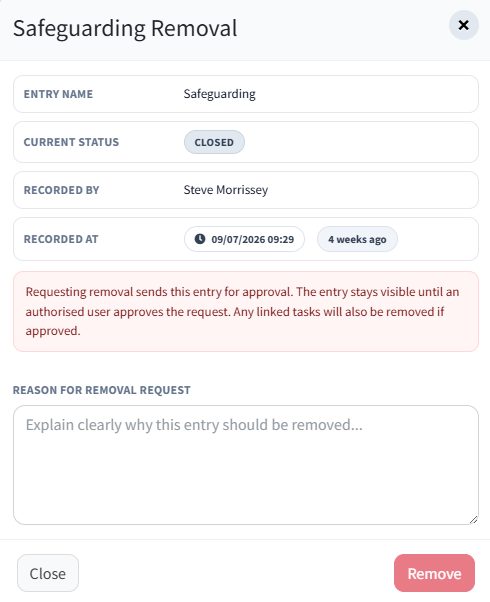
Before an authorised approver removes your entry, you must enter the reason for the removal in the ‘Type reason here…’ box then click ‘Remove’.
You will know that your request has been completed by seeing the following message in the top right hand corner of your screen.
