Anonymous Reporting Setup
Anonymous reporting allows you to (for specific recording types) make a form available via a QR Code, Link or embed in your own application or website. This will allow non-users of recordmy to record a new entry without logging in. An example of this might be that you want to accept concerns from members of the public or parents.
When an anonymous entry is created, you will be notified as per the notifications for that recording type. These will appear in the same section on your dashboard and you will notice a separate tab at the top for Anonymous.
To enable anonymous reporting, Go to the top right menu and then Establishment.
Under Establishment Options you will see Anonymous Reporting
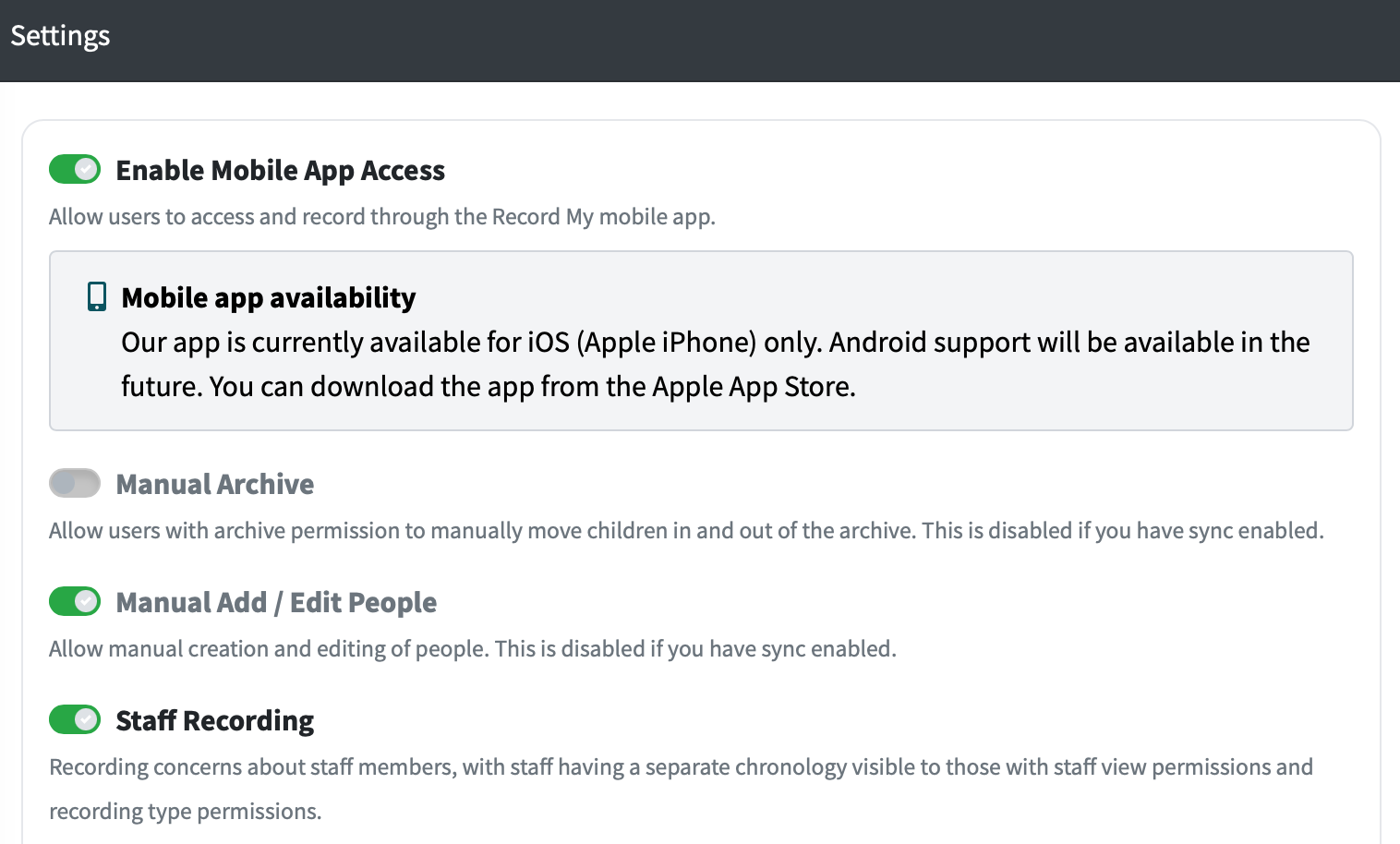
Turn this on.
Permissions
Open the top-right menu.
Select Permissions.
Grant the following to the relevant roles/users:
ANON VIEW (required to view anonymous records) - This is not to view information such as chronology entries, this only gives access to the view button.
ANON SEARCH (required to search anonymous records)
Configure Recording Types for Anonymous Reporting
Once enabled and permissions are granted, you can now customise a Recording Type to enable anonymous reporting. Something to bear in mind - the existing form you have will be used but for security and privacy, any form fields that have a search facility - such as include on family or staff involved will not appear on the external form.
Open the top-right menu.
Select Customisation.
Open the recording type you want to allow anonymous reporting on, or create a new recording type specific for this.
At the top under Recording Type Options - turn on anonymous reporting.
Save changes.
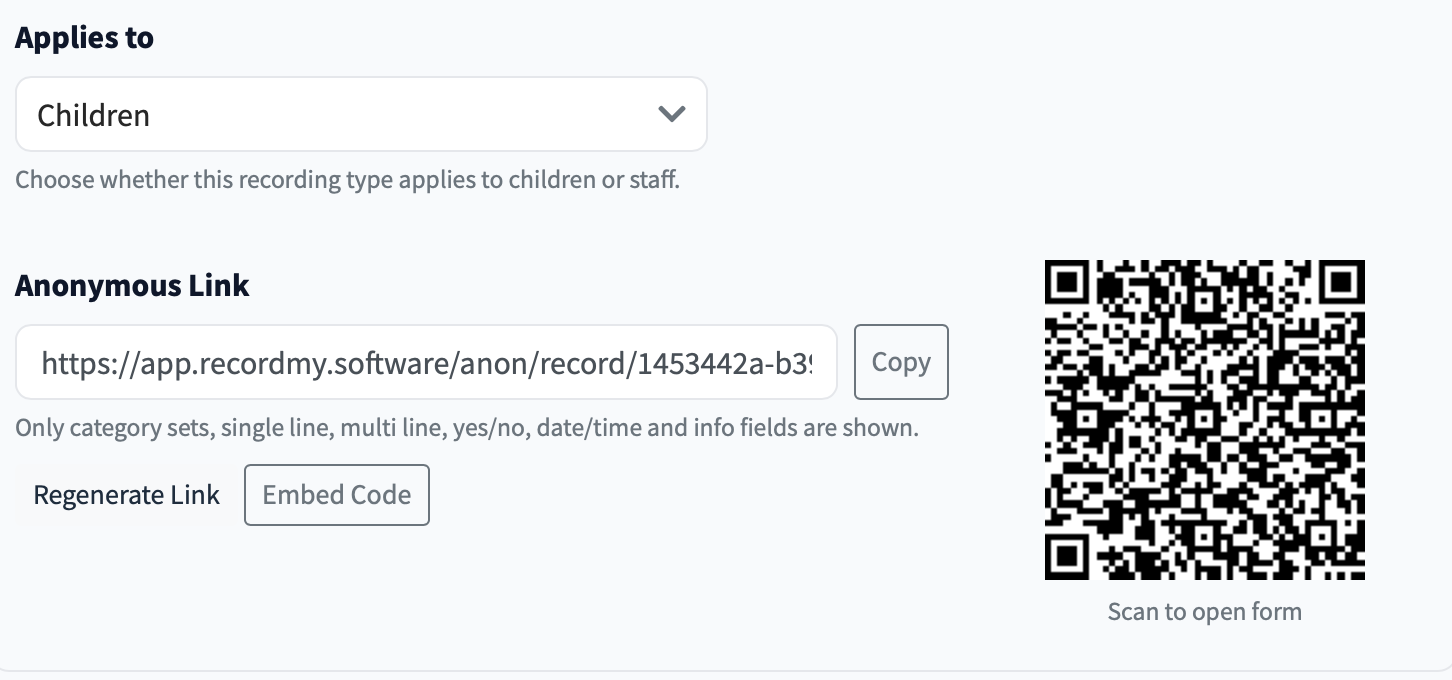
You will now see a QR Code and Link as well as a button to get the ‘Embedding Code’ - The embedding code is what you can use to put the form in your own application or on your website.