
Step 1: Login to RecordMy
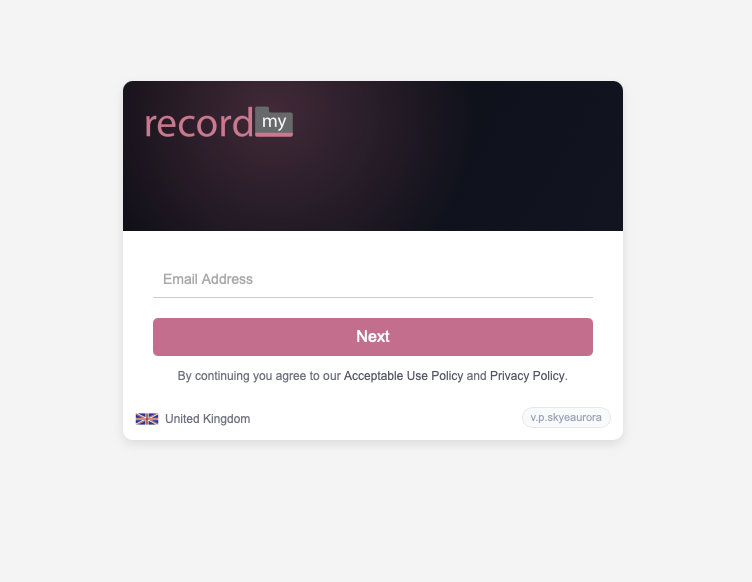
Enter your email address and press 'Next'. If your organisation uses SSO (Single Sign On) - you will be taken to your organisations login page, otherwise you will be asked for your password.
Step 2: Search for the person you would like to record something for
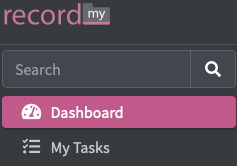
In the top left (grey sidebar / menu) type the first or last name (or both) and press the search icon.
This will give you a list of people matching the search terms you used.
You can also search by ID / UPN here too.
Step 3: Click the blue record icon

Step 4: Choose the type of information you want to record from the tabs
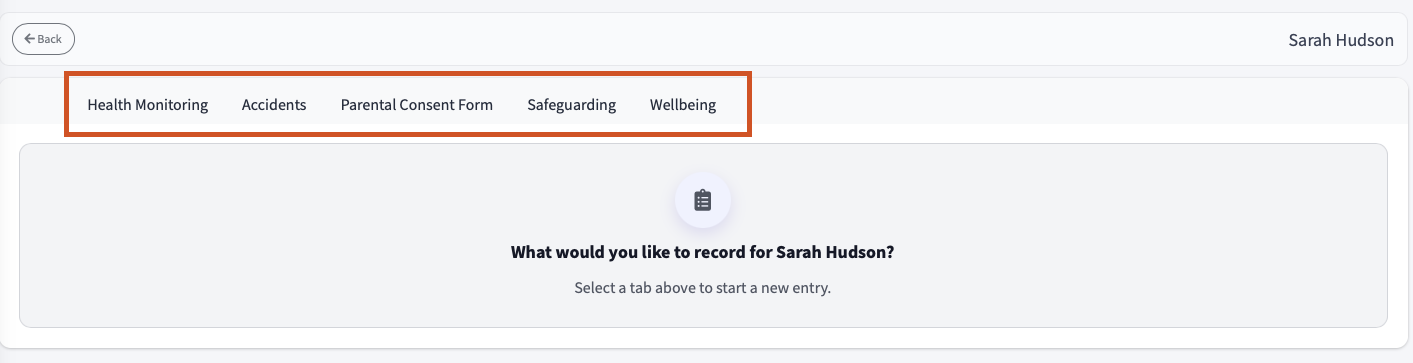
Step 5: Complete the form
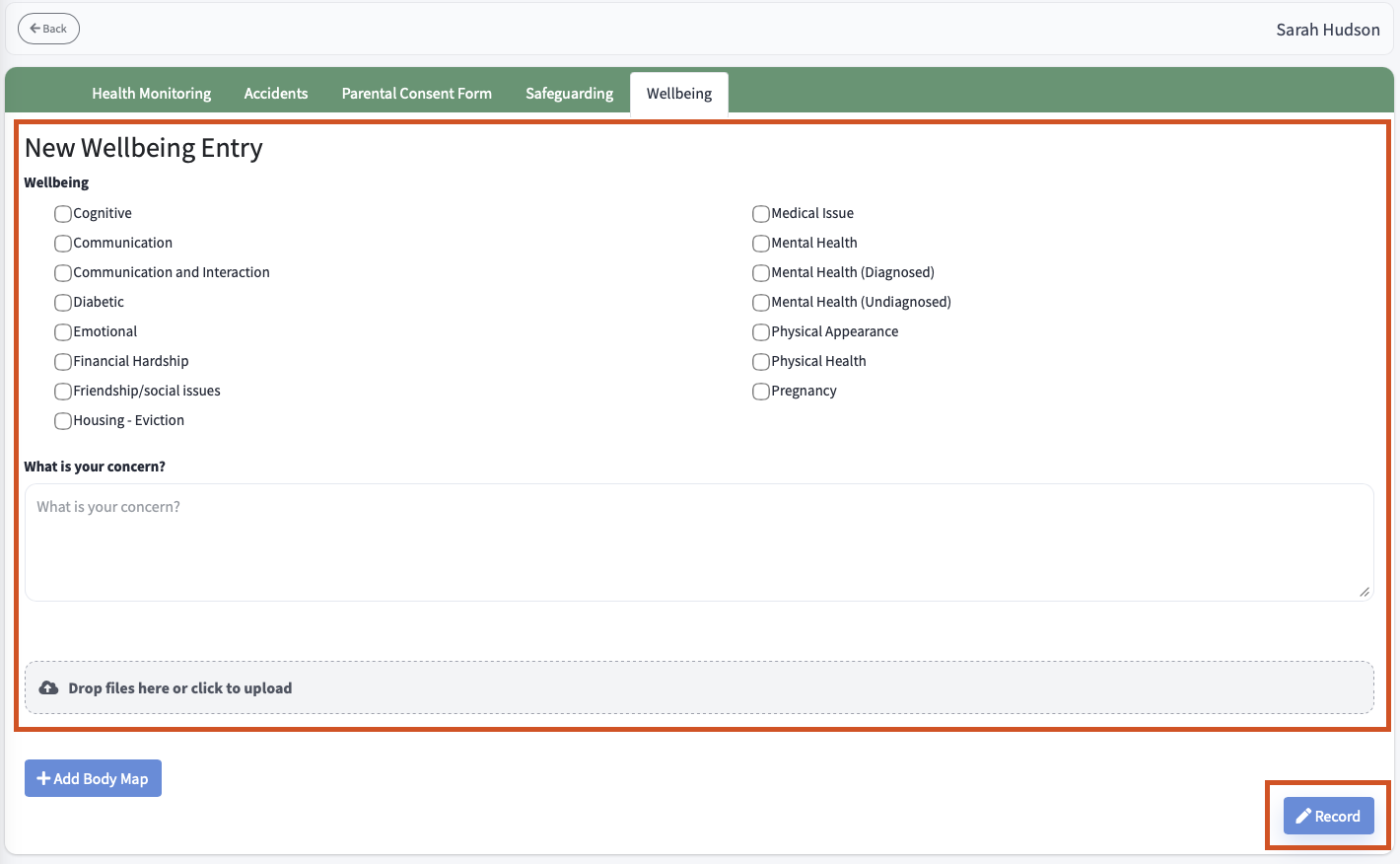
You can now complete the form, If you need to add a body map and that is enabled in your organisation then you will see a button called + Body Map.
Once you have completed the form, press the blue 'Record' button. This is now recorded, once this is picked up by the team - you will receive an email notification.