When turning on MFA for a user, they will receive an email containing a QR code. If the user has an Apple iPhone or iPad they can download our authentication app - ‘RecordMy MFA’ directly from the App Store. If not using an Apple device then the equivalent app can be downloaded from the Play Store. They can also use other popular apps such as Google Authenticator.
What if I change my phone?
This will depend on whether you still have the original email with your QR code or alternatively your existing device.
I have the original email with my QR code
Simply download the RecordMy MFA app from the Apple App Store or Google Authenticator if you have an Android device. Scan the barcode contained within the original email. This will then allow you to login.
I no longer have the email with my QR code
If you have your original phone then you can follow the step ‘Access my QR code to setup a new phone’ below.
If you no longer have the original phone or email then you will need to ask your Manager to turn off MFA and back on to send you a new QR code.
Access my QR code to setup a new phone
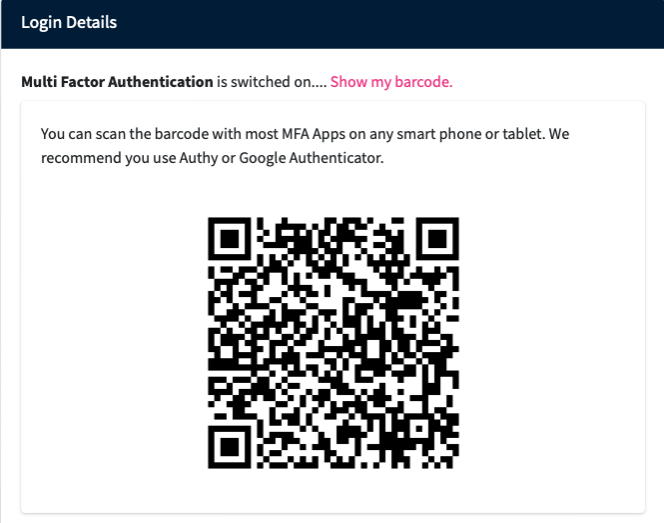
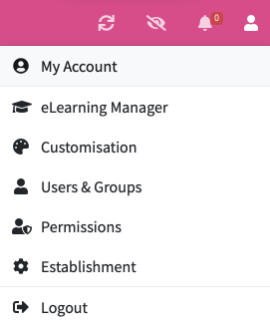
You can view your QR code by going to the ‘My Account’ section. This is a tab in the top right hand corner of your screen. Scroll down until you see the status of your MFA, as shown below. Then click on ‘Show my barcode’.

The QR code should then appear on the screen, for you to scan.